How to Find and Delete Duplicate Photos on Mac
Duplicate photos taking up space on your Mac and iCloud? Here's how to find and remove them quickly without accidentally deleting the wrong thing.

Duplicate photos are a silent storage killer. They accumulate from importing photos multiple times, transferring between devices, and screenshot bursts. Here's how to find and remove them.
Why Duplicates Happen
- Importing the same photos from iPhone multiple times
- Transferring photos from old devices during iPhone upgrades
- Screenshots taken in quick succession
- Burst mode photos where you keep multiple similar shots
- Importing from multiple sources — camera, iPhone, old hard drives
Method 1 — Using Apple Photos Built-in Duplicates Detection
Since macOS Ventura, Photos has a built-in duplicates detector:
- Open Photos on your Mac
- In the sidebar under Library, click Duplicates
- Photos shows all detected duplicate groups
- Click Merge on each group to keep the best version and delete the rest
- Or click Merge All to handle everything at once
This is the safest method as Photos is smart about keeping the highest quality version.
Method 2 — Using Gemini 2
Gemini 2 is a dedicated duplicate finder for Mac that goes beyond what Photos detects:
- Download Gemini 2 from the Mac App Store
- Add your Photos library or photo folders
- Gemini scans and groups duplicates and near-duplicates
- Review and delete with one click
Gemini also finds similar photos — not just exact duplicates — so you can cull burst shots and multiple attempts at the same photo.
Method 3 — Manual Review
For smaller libraries you can review manually:
- In Photos, sort by date
- Look for groups of very similar photos taken within seconds of each other
- Select the ones you want to delete and press Delete
- Empty the Recently Deleted album to free the space immediately
Before You Delete — Back Up First
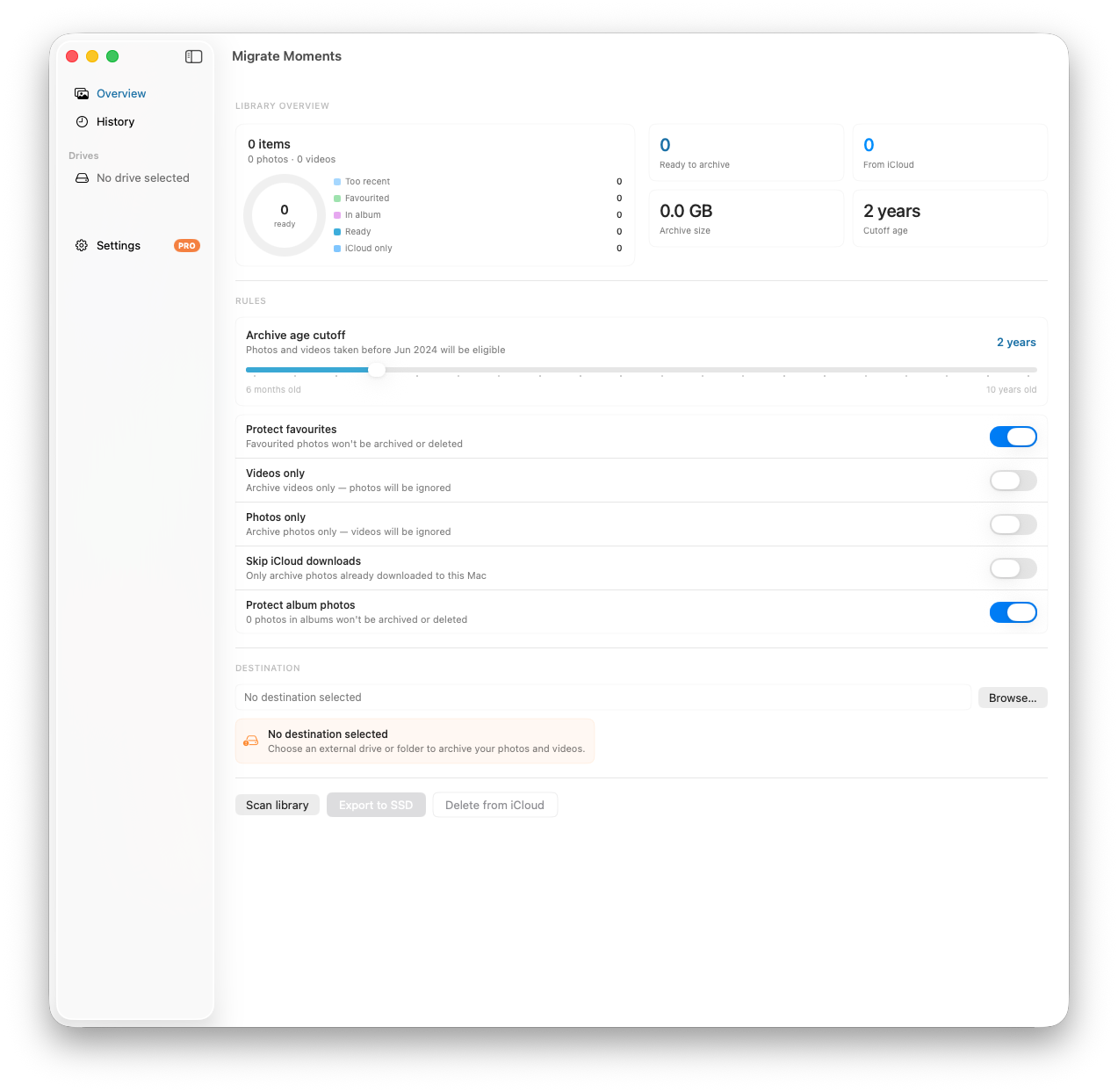
Always make sure you have a backup before deleting large numbers of photos. Use Migrate Moments to export your library to an external drive first — then you can delete duplicates from iCloud with confidence knowing everything is safely archived.
How Much Space Can You Reclaim?
It varies enormously but users with large libraries often find:
- a meaningful share of their library turns out to be duplicates
- Burst photos can account for hundreds of near-identical shots
- Old imports from switching phones can double-count years of photos
A library of 50,000 photos might have 5,000-8,000 duplicates — potentially saving 10-20GB.
After Removing Duplicates
Once you've removed duplicates, empty the Recently Deleted album in Photos to immediately reclaim the storage. Go to Recently Deleted in the sidebar and click Delete All.
Then consider archiving older photos to an external drive with Migrate Moments to keep your library lean going forward.
Related articles
Ready to free up your iCloud storage?
Download Migrate Moments free — scan your library in minutes.
