How to Delete Photos from iCloud But Keep Them on iPhone
Want to remove photos from iCloud without deleting them from your iPhone? Here's how to do it safely without losing your memories.

This is one of the most common questions about iCloud Photos — and it's trickier than it sounds. Here's what's actually possible and how to do it safely.
The Challenge
When iCloud Photos is turned on, your iPhone and iCloud are fully synced. Deleting a photo on your iPhone deletes it from iCloud too — and vice versa. They're not separate storage locations, they're mirrors of each other.
So you can't simply "delete from iCloud but keep on iPhone" while iCloud Photos is active.
The Solution — Download First, Then Delete
The safe way to do this is:
- Make sure the photos are downloaded locally to your iPhone
- Turn off iCloud Photos
- Your photos stay on your iPhone but are no longer synced to iCloud
Here's how step by step:
Step 1 — Download Originals to Your iPhone
Go to Settings → Photos and select Download and Keep Originals instead of Optimise iPhone Storage.
Wait for all originals to download — this can take a while depending on your library size and connection speed. You'll see a progress bar at the bottom of the Photos app.
Step 2 — Turn Off iCloud Photos
Once everything is downloaded:
- Go to Settings → your name → iCloud → Photos
- Toggle off Sync this iPhone
- Choose Download Photos and Videos when prompted — not Remove from iPhone
Your photos now live only on your iPhone, not in iCloud.
Step 3 — Free Up iCloud Storage
With iCloud Photos turned off your photo library no longer uses iCloud storage. You can now reduce your iCloud plan.
A Better Alternative — Archive to External Drive
Rather than keeping thousands of photos on your iPhone (which fills up local storage), consider a smarter approach:
- Keep recent photos on your iPhone and in iCloud
- Archive older photos to an external SSD using Migrate Moments
- Remove archived photos from iCloud to free up space
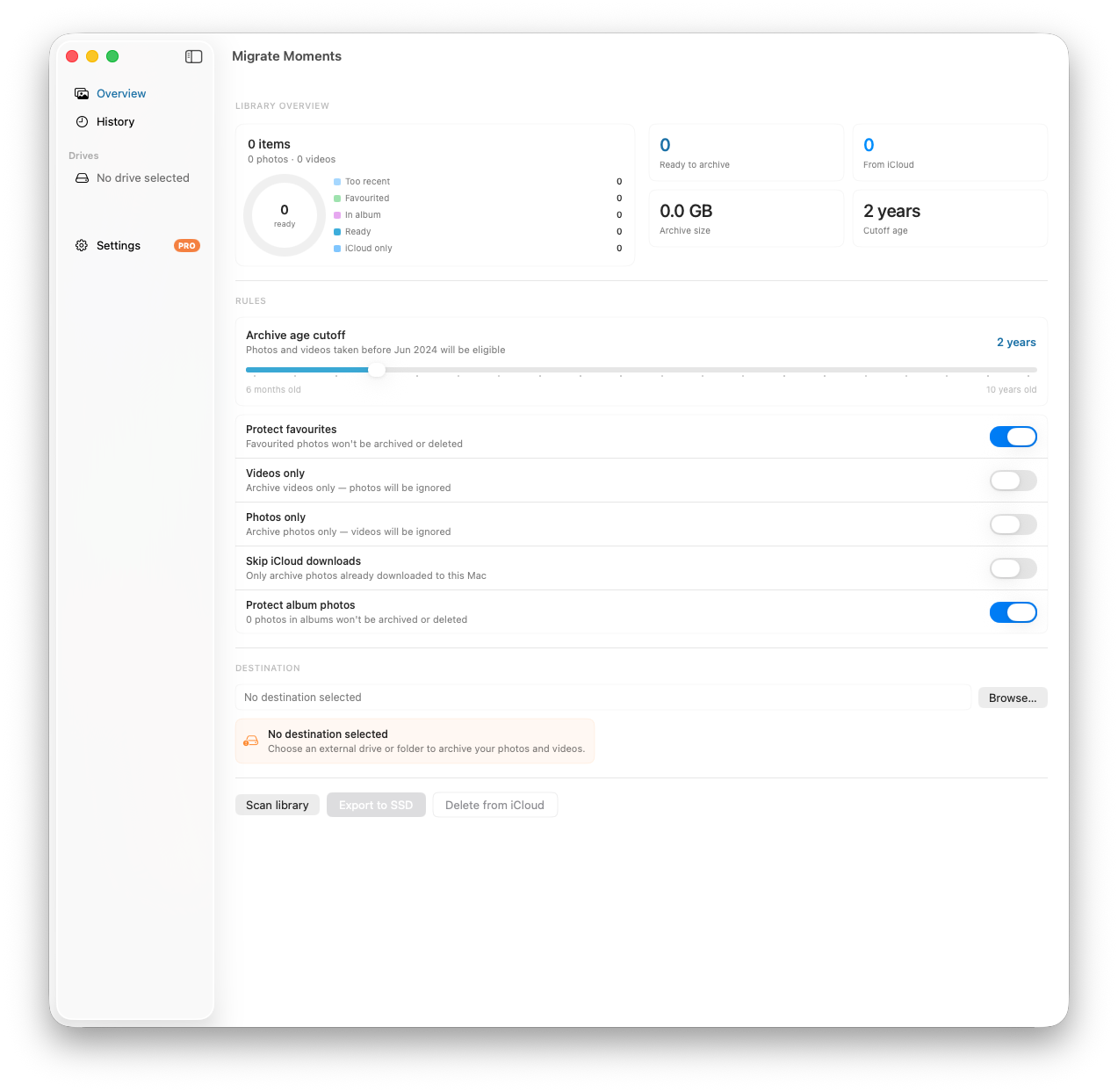
This gives you the best of both worlds — recent photos always accessible, older memories safely stored on a drive you own.
What About Keeping Specific Photos?
If you only want to keep certain photos on your iPhone and remove others from iCloud, the process is:
- Download the photos you want to keep locally
- Export or save them outside of the Photos app
- Delete them from Photos — this removes them from both iPhone and iCloud
- Re-import them directly to your iPhone without iCloud syncing
This is complicated and error-prone for large numbers of photos. Migrate Moments is a much cleaner solution for bulk archiving.
Related articles
Ready to free up your iCloud storage?
Download Migrate Moments free — scan your library in minutes.
