How to Move Photos from iCloud to Google Photos
Step-by-step guide to transferring your entire iCloud photo library to Google Photos — without losing quality, metadata, or albums. Works for any library size.

Moving photos from iCloud to Google Photos can cut your storage bill significantly — Google's 100GB plan costs less than Apple's equivalent, and you get 15GB free vs iCloud's 5GB. But a rushed transfer leads to missing metadata, corrupted files, or photos that never made it across before you cancel iCloud.
The transfer itself takes a few hours. Here's the complete process — including exactly what to verify before you cancel anything.
What You'll Need Before You Start
- A Mac running macOS 14 or later (recommended for large libraries)
- A Google account with enough storage — check at one.google.com/storage
- An external drive if your library is larger than your Mac's free space
- A stable Wi-Fi connection
For reference: iCloud's 200GB plan is A$4.49/month as of July 2026. Google's equivalent comes through a paid Google One plan once you outgrow the free 15GB — worth checking current figures, as Google reworked its tiers during 2026.
Step 1 — Export Your Photos from iCloud
The most reliable way to export a large iCloud library is Migrate Moments — it downloads your originals directly to an external drive without filling up your Mac's internal storage.
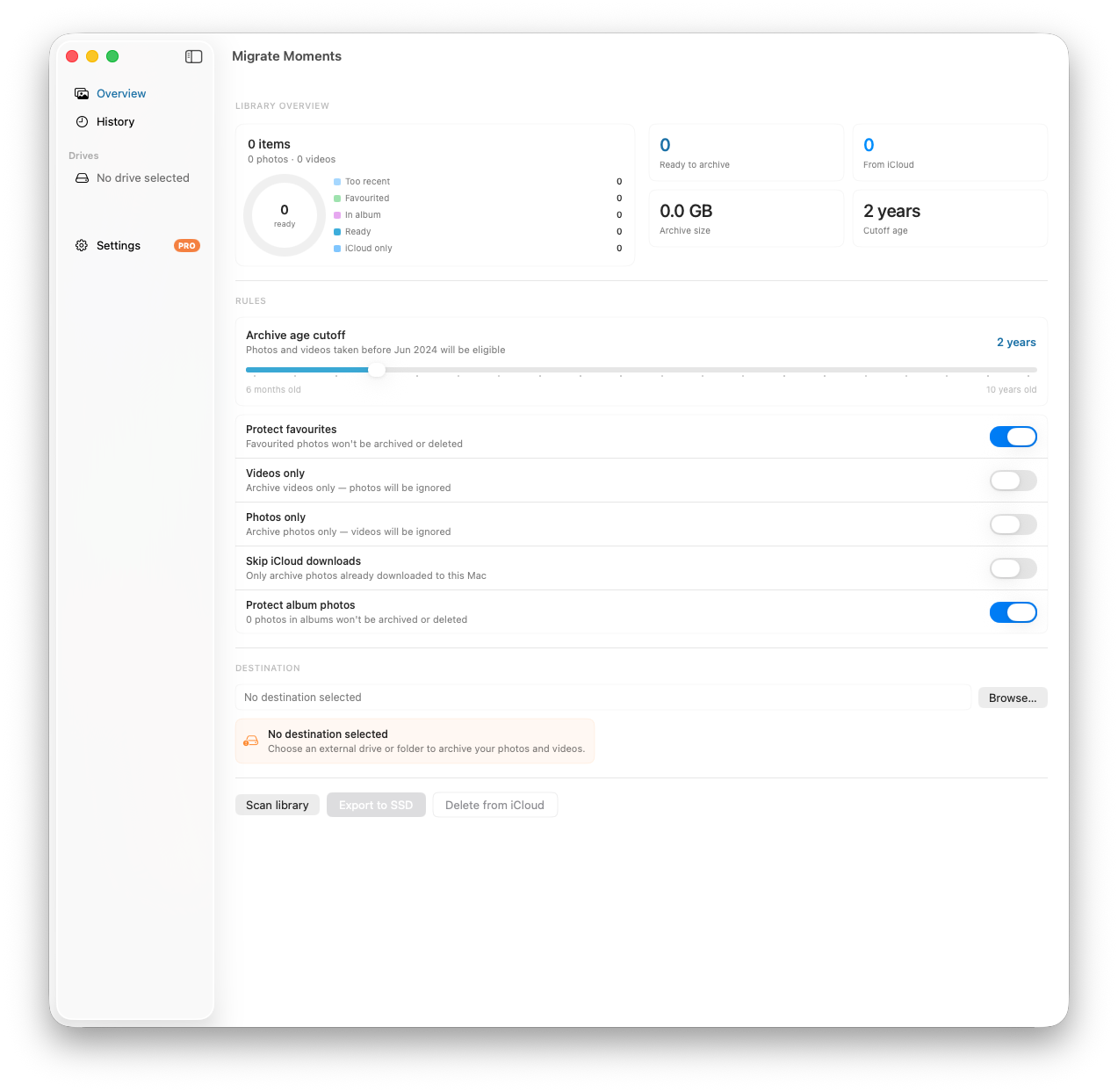
- Download Migrate Moments free on your Mac
- Connect an external drive with enough free space
- Open the app — it scans your iCloud library automatically
- Select Google Photos as your export destination, or export to your external drive first
- Click Export — it downloads everything organised by year and month
Manual alternative using the Photos app:
- Go to Photos → Settings → iCloud
- Select Download Originals to this Mac and wait for the sync to complete
- Go to File → Export → Export Unmodified Originals
- Select your external drive as the destination
Important: Always export "Unmodified Originals" — not the standard export option, which can compress your photos and strip metadata. For more detail on exporting large libraries, see how to download all your iCloud photos at once.
Step 2 — Upload to Google Photos
Once your photos are on your Mac or external drive, upload them to Google Photos.
For libraries under 15GB — use the browser:
- Go to photos.google.com
- Click Upload → Computer
- Select your photo folders
- Wait for the upload to complete
For large libraries — use Google Photos Uploader: The browser upload stalls on large libraries. Use the desktop uploader instead:
- Download Google Photos Backup & Sync from photos.google.com/apps
- Point it at your exported photo folders
- It uploads automatically in the background, resuming if interrupted
Step 3 — Verify the Transfer
Before you cancel iCloud or delete anything:
- Check photo counts — compare the total in Google Photos with your iCloud library count
- Check dates — spot-check that photos from different years are appearing correctly
- Check videos — videos sometimes get skipped; scroll through to confirm they're there
- Check Live Photos — these export as a still + MOV file; Google Photos recombines them on iOS
Allow a day or two for Google Photos to finish processing everything before doing a final count.
Step 4 — Switch Your iPhone to Google Photos
- Download the Google Photos app from the App Store
- Open it and enable Backup
- Set backup quality to Original quality (uses your Google storage quota but keeps full resolution)
- Once your existing library is fully backed up to Google Photos, go to Settings → [Your Name] → iCloud → Photos and turn off iCloud Photos
Don't turn off iCloud Photos until Google Photos has fully backed up your existing library. Do both for a few weeks first to be safe.
What Doesn't Transfer Automatically
| Feature | Transfers? | Notes |
|---|---|---|
| Photos | ✅ Yes | Full resolution originals |
| Videos | ✅ Yes | Including 4K |
| Live Photos | ✅ Yes | Recombined in Google Photos on iOS |
| Metadata (date, location) | ✅ Yes | Preserved in original files |
| iCloud Albums | ❌ No | Need to recreate manually |
| Shared Albums | ❌ No | Only your own photos transfer |
| Memories | ❌ No | Google Photos generates its own |
| Faces/People | ❌ No | Google Photos re-learns faces |
Once the transfer is fully verified, you can cancel your iCloud storage plan without losing photos and drop to a cheaper tier.
How Long Does It Take?
| Library Size | Export Time | Upload Time |
|---|---|---|
| 10GB | 1–2 hours | 1–3 hours |
| 50GB | 4–8 hours | 4–10 hours |
| 200GB+ | 12–24 hours | 1–2 days |
Both steps can run overnight. The upload speed depends heavily on your internet connection — most home connections upload at 10–50 Mbps.
Frequently Asked Questions
Will my photos lose quality when transferred? Not if you export Unmodified Originals and upload at Original quality in Google Photos. The photos will be identical to what's in iCloud.
Do I have to pay for Google Photos? Google gives you 15GB free, shared with Gmail and Drive. If your library is larger you'll need a paid Google One plan — check current Australian pricing there, as Google changed its tier structure during 2026.
Can I keep both iCloud and Google Photos running? Yes. Many people run both as a redundant backup. You'll be paying for storage on both services though.
What happens to photos I take after switching? Once you enable Google Photos backup and disable iCloud Photos on your iPhone, new photos back up to Google Photos automatically.
I have 50,000 photos — is this realistic? Yes. The process is the same — it just takes longer. Use Migrate Moments and an external drive, and let it run overnight. How long a large library takes depends mostly on your internet speed. Once done, see our guide on how to stop paying for iCloud storage to downgrade your plan safely.
Make the Switch With Migrate Moments for Mac
Migrate Moments for Mac handles the entire iCloud to Google Photos transfer — downloading originals from iCloud and uploading them to Google Photos at full resolution, verifying every file before removing anything from iCloud. Connect your Google account, set your archive age, and let it run overnight. Free to download and scan.
Related Articles
Ready to free up your iCloud storage?
Download Migrate Moments free — scan your library in minutes.
