iCloud vs External Hard Drive — Which is Safer for Your Photos?
Should you store your photos in iCloud or on an external hard drive? Here's an honest comparison of both options for long term photo storage.

When it comes to storing your photos safely, iCloud and external hard drives each have real advantages and real weaknesses. Here's an honest comparison.
iCloud — The Pros
Convenience — photos sync automatically across all your Apple devices with no effort. Take a photo on your iPhone and it appears on your Mac within seconds.
Accessibility — access your photos from anywhere with an internet connection, including icloud.com from any browser.
Automatic backup — no manual action required. Everything is backed up continuously.
Sharing — easy to share albums with family and friends directly from the Photos app.
iCloud — The Cons
Ongoing cost — you pay forever. 200GB is $4.49/month ($53.88/year). Over 10 years that's $538 for storage you never own.
Not a true backup — if you delete a photo on one device it deletes everywhere. iCloud syncs deletions too.
Internet dependent — no connection means no access to iCloud-only photos.
Privacy concerns — your photos live on Apple's servers. While encrypted, they're not under your physical control.
Account risk — if you lose access to your Apple ID, recovering photos can be extremely difficult.
External Hard Drive — The Pros
One-time cost — a 1TB SSD costs around $100 once. No ongoing fees.
True backup — a separate physical copy that's completely independent of iCloud. Deleting from iCloud doesn't affect your drive.
Privacy — your photos stay in your possession, not on someone else's servers.
Speed — local files open instantly with no internet required.
No account dependency — your photos are yours regardless of what happens to any account.
External Hard Drive — The Cons
Manual process — you need to actively back up. It doesn't happen automatically.
Physical risk — drives can fail, get lost, stolen or damaged. No offsite redundancy unless you have multiple drives.
Not accessible remotely — you need the physical drive to access the photos.
Organisation — without a good system, files can become disorganised.
The Verdict
Neither option alone is ideal. The safest approach is both:
- Keep recent photos (last 1-2 years) in iCloud for convenience and automatic sync
- Archive older photos to an external SSD for long term storage at no ongoing cost
This is exactly what Migrate Moments is designed for.
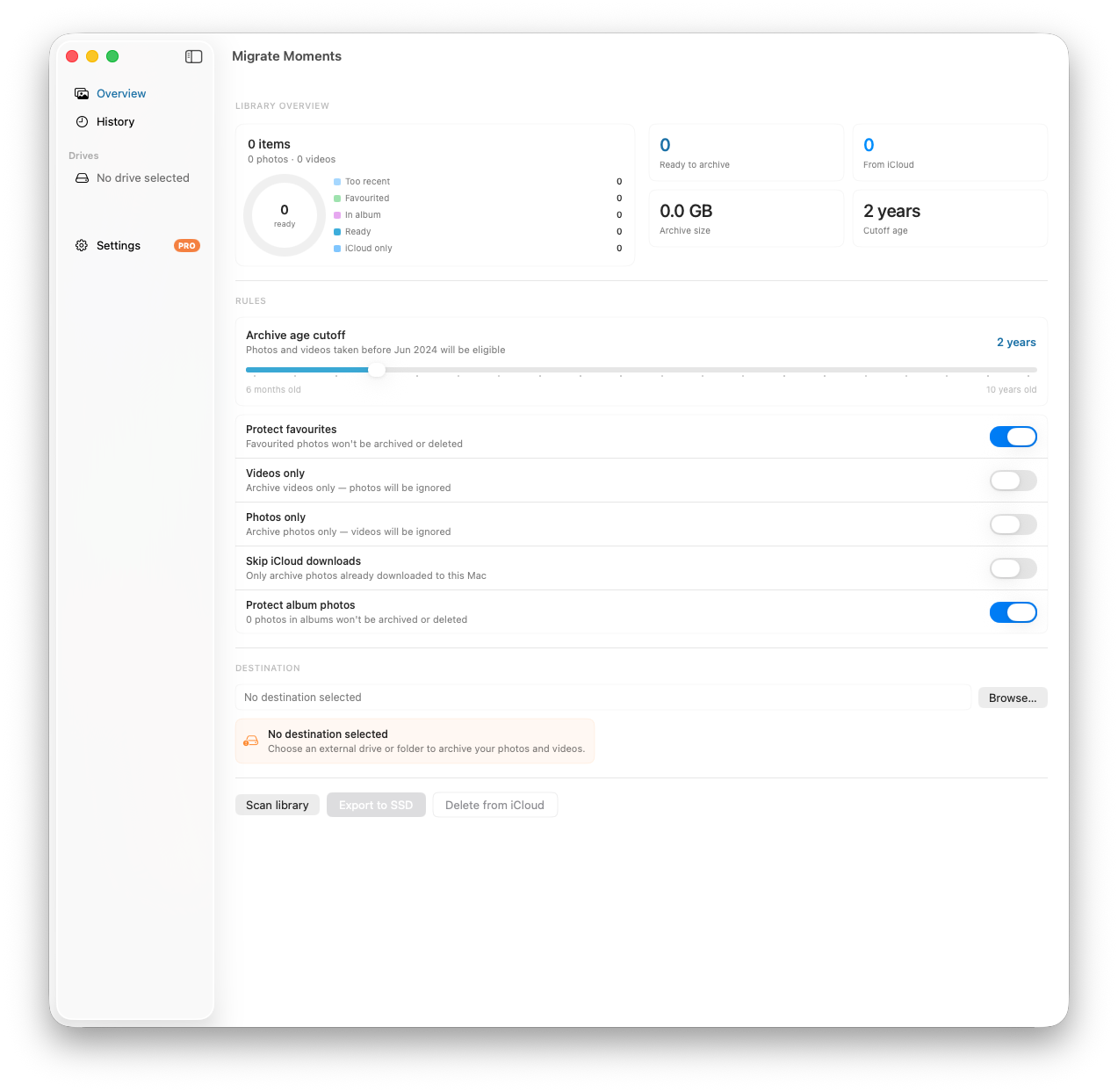
Migrate Moments exports your old photos from iCloud to an external SSD, organised by year and month, then safely removes them from iCloud — reducing your ongoing storage costs while keeping every memory safe on your drive.
The 3-2-1 Backup Rule
For maximum safety, follow the 3-2-1 rule:
- 3 copies of your photos
- 2 different storage types (e.g. iCloud + external drive)
- 1 offsite copy (e.g. a drive at a different location or a second cloud service)
Most people are fine with iCloud plus one external drive. That covers the vast majority of failure scenarios.
Related articles
Ready to free up your iCloud storage?
Download Migrate Moments free — scan your library in minutes.
